 SportClimb Analytics
Sport Climb Tracker is a Garmin watch app for tracking sport climbing sessions. It automatically records heart rate and altitude during your climbs, and lets you log route details such as grade, result, mode, and style immediately after each route.
Download on Garmin Connect IQ →
Older or smaller Garmin watch? There is Sport Climb Tracker Lite for that.
Installation
- Open the Connect IQ app on your phone, or visit apps.garmin.com.
- Search for Sport Climb Tracker and tap Install.
- Make sure your watch is connected to your phone via Bluetooth so the app is transferred.
- On the watch, find the app under Activities.
Getting started
- Open Sport Climb Tracker on your watch from the Activities menu.
- The app starts a session immediately and begins recording heart rate and altitude.
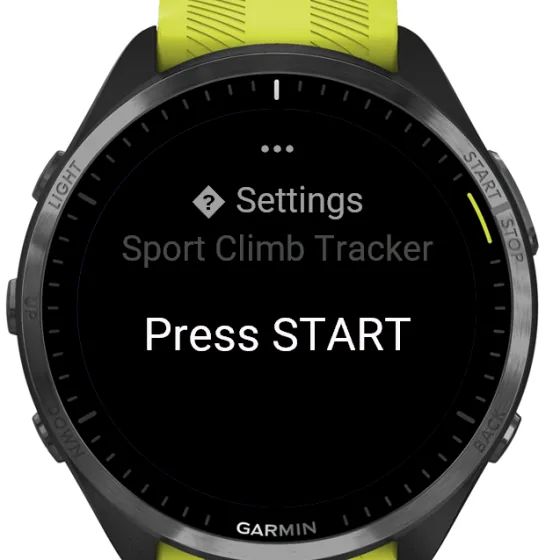
- Configure your location and grading system in Settings before your first session (hold MENU).
- Start climbing. Either press LAP / BACK to manually start a route, or enable Auto-detect to let the app start a route automatically.
- When you finish a route, press LAP / BACK again. A logging screen appears to record the details.
- At the end of your session, press START and choose Save. Sync your watch with Garmin Connect to see your data in SportClimb Analytics.
Settings
Hold MENU on the main screen to open settings. On touchscreen-only watches (e.g. Vivoactive 6), swipe up on the start screen to open settings. The app remembers all settings between sessions.
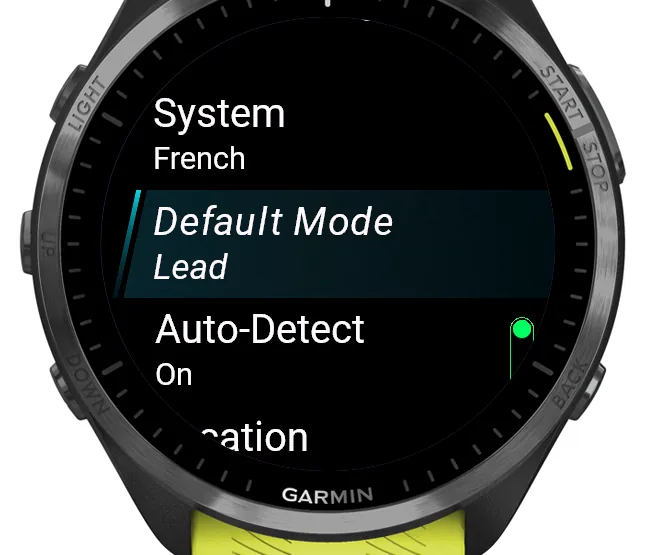
| Setting | Description |
|---|---|
| Grading system | The grading scale shown in the route logger. French (default) — 5a, 5b, … 9b+ UIAA — IV, V, … XII USA — 5.6, 5.7, … 5.15d |
| Default mode | Pre-selects the climbing mode (Lead, Toprope, Warmup or Boulder) when logging a route, so you don't have to change it every time. |
| Auto-detect | When On, a route starts automatically after detecting more than 1.5 m of upward movement. A beep confirms. Useful when you want hands-free operation. When Off, you start every route manually with LAP / BACK. |
| Touchscreen | Enable or disable the touchscreen during a session. Disable it to prevent accidental taps while climbing. |
| Manage locations | Add, favorite, rename, or delete named climbing locations (gyms, crags, boards, boulder spots, or multi-pitch routes), each tagged with a type — see Location management below. The Garmin activity type for a session (stored in the FIT file) automatically follows whichever location type you used most recently, since it has to be fixed before a session starts and can't change afterwards. |
| Extended logging | Recognizes previously logged routes by set/build date (indoor) or route number (outdoor), and suggests the grade and result automatically. |
| Pitch review | Multi-pitch sessions only — choose whether to rate each pitch immediately after it's split off (Direct), or all at once at the end of the ascent (At the end). See Multi-pitch climbing below. |
Main screen
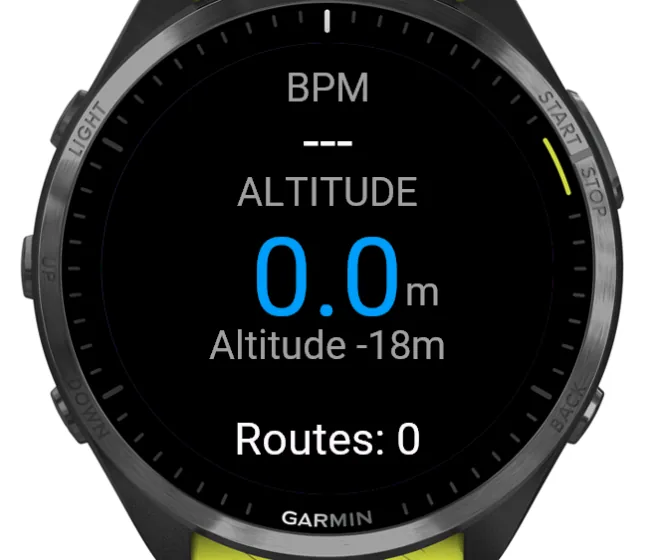
The main screen is your home base during a session. It shows:
- Heart rate (top) — color-coded: green below 120 bpm, orange 120–150, red above 150.
- Altitude gain (center) — relative height gained since starting the session. When a route is active, this shows the current route height in red.
- Barometric altitude (below center) — the absolute altitude from the watch barometer.
- Route count (bottom) — total number of completed routes this session.
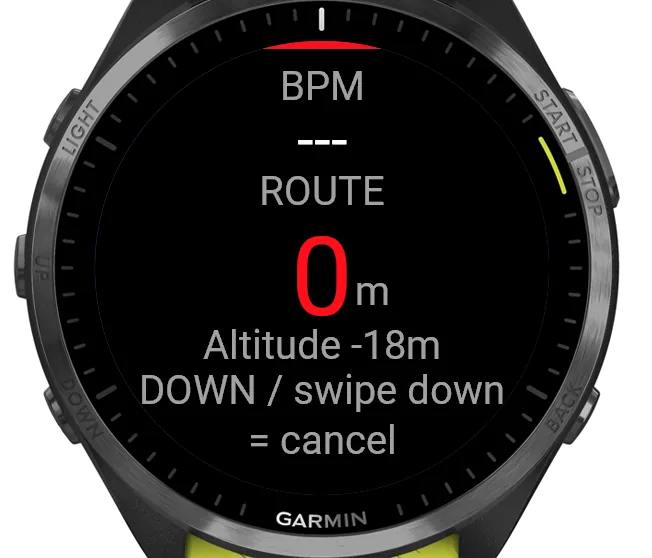
When a route is active, a red strip appears at the top of the screen as an indicator.
Button overview
| Button | Action |
|---|---|
| LAP / BACK | Start a route (when idle) or finish a route (when climbing) |
| START | Open the save/discard session menu |
| DOWN | While climbing: cancel the current route without saving it. Otherwise: open session overview |
| UP | Open session overview |
| MENU (hold) | Open settings |
Touchscreen navigation
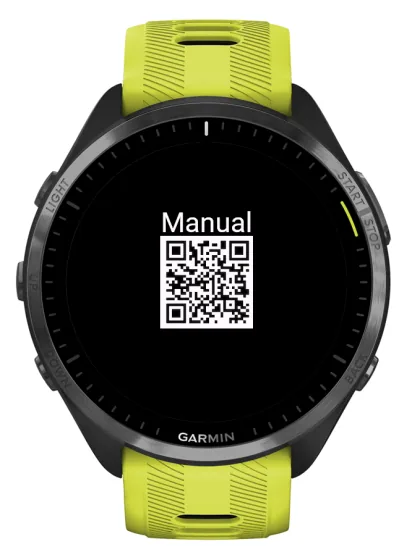
On touchscreen devices, swipe down or up to navigate between screens (main → session overview → graph → manual → analytics QR code). When a route is active, swipe down to cancel it — a confirmation screen appears. These gestures work alongside physical buttons on devices that have both.
Auto-detect
When auto-detect is enabled in settings, the app monitors the barometric altitude every second. If it detects more than 1.5 m of upward movement within a 5-second window, a route starts automatically. A short beep confirms the detection. You can still start and stop routes manually at any time.
Session overview
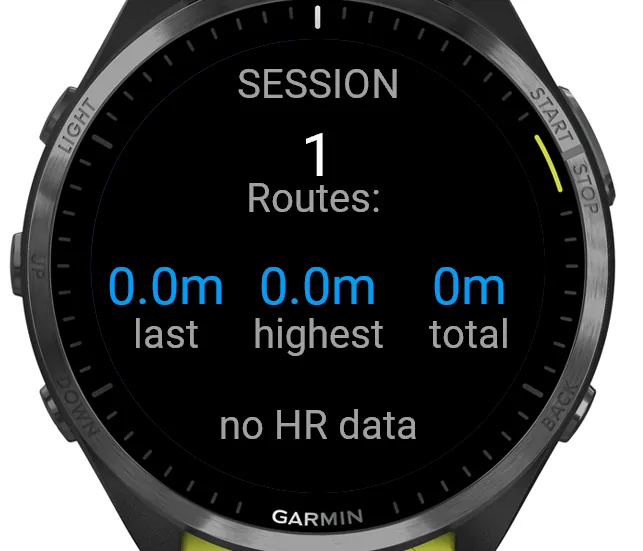
Swipe to the session overview (press UP or DOWN from the main screen) to see a summary of your current session:
- Routes — number of completed routes.
- Last — height of the most recently completed route.
- Highest — highest single route this session.
- Total — total height gained across all routes.
- BPM min–max — heart rate range recorded during the session.
| Button | Action |
|---|---|
| DOWN | Open graph |
| UP / BACK | Back to main screen |
Graph
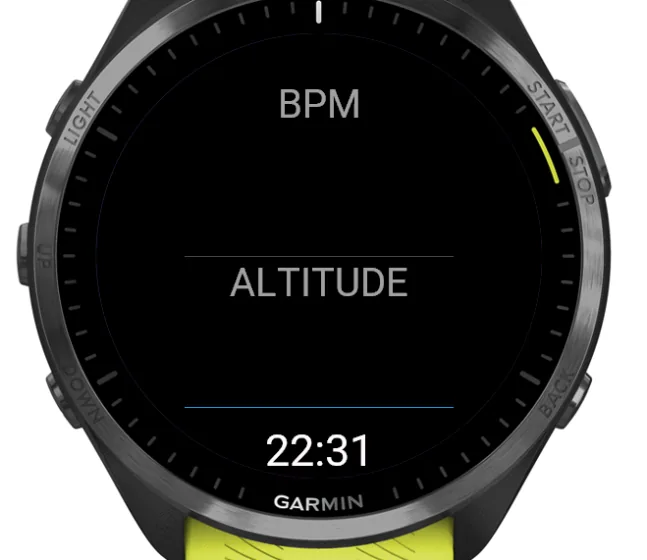
The graph screen shows two charts recorded over the course of the session:
- BPM (top chart, red) — heart rate over time.
- Altitude (bottom chart, blue) — barometric altitude over time.
| Button | Action |
|---|---|
| DOWN | Open manual QR code |
| UP / BACK | Back to session overview |
Logging a route
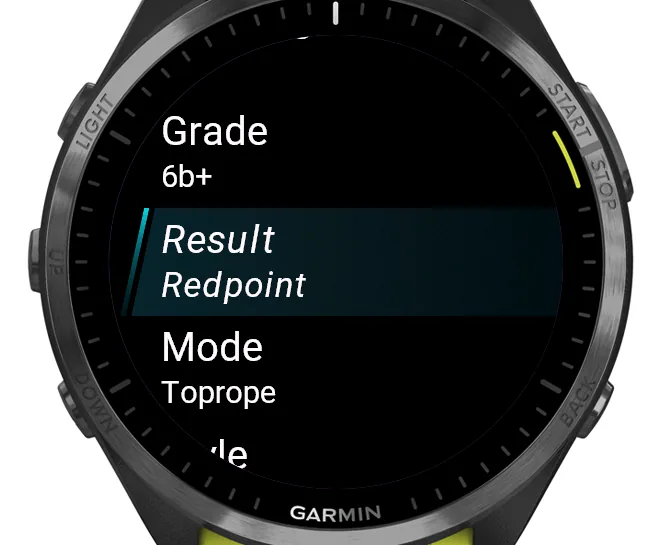
After finishing a route (pressing LAP / BACK while climbing), a logging screen appears. Scroll through the fields and tap to change each value:
| Field | Options |
|---|---|
| Location | Which named place you're climbing at — see Location management below. Shown for every route, with or without Extended logging. |
| Mode | Lead, Toprope, Warmup or Boulder. Directly below Location, and selected when the screen opens. On a Board or Boulder location it starts on Boulder (from app version 4.12). |
| Grade | Select from French, UIAA, or USA grades (grading system set in settings). Tap to open the grade picker. |
| Result | On Sight – 1st try, no info Flash – 1st try, with beta Redpoint – clean, after tries Hang Dog – working the route Repeat – already sent before DNF – not topped out |
| Style | Tap to cycle through: Slab, Vertical, Overhang, Roof |
| Height | Pre-filled from the measured altitude. Tap to open the picker (1–60 m). |
Press SAVE to confirm and store the route in the FIT file. Press BACK to go to a confirmation screen where you can also choose Don't save to discard the route entirely.
The last-used values for grade, result, mode, and style are remembered for your next route.
Location management
Every route has a Location field — the named place you're climbing at (a specific gym, crag, board, boulder spot, or multi-pitch route), independent of Extended logging. Add, favorite, rename, delete, or change the type of a location anytime from Settings → Manage locations, or straight from the Location field on the log screen.
Locations work with or without a GPS fix: a location is remembered as soon as you type it, and automatically recognized by position on a future visit if a GPS fix was available when you added it.
Multi-pitch climbing
Multi-pitch is a 5th location type, alongside Gym, Board, Crag and Boulder, for a route you climb continuously through several pitches rather than one at a time. Set it from Settings → Manage locations or the Location field, the same way as any other location type.
Starting a multi-pitch route
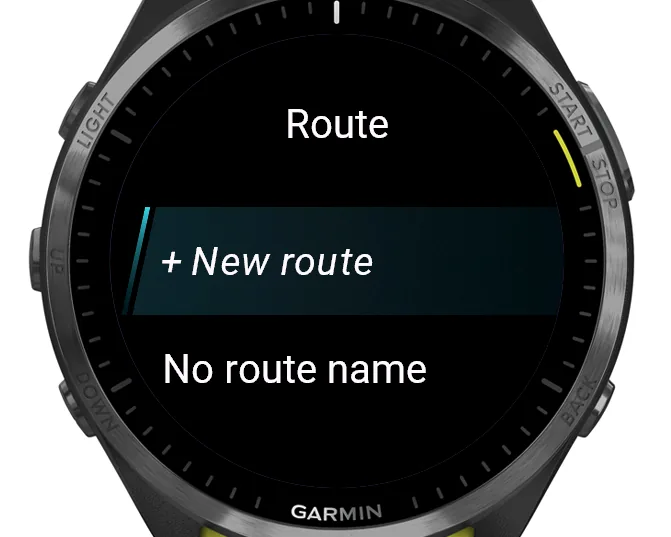
Before the session begins, you're asked for the route's name — pick a previously used one, type a new one, or choose No route name if the location name already identifies it well enough.
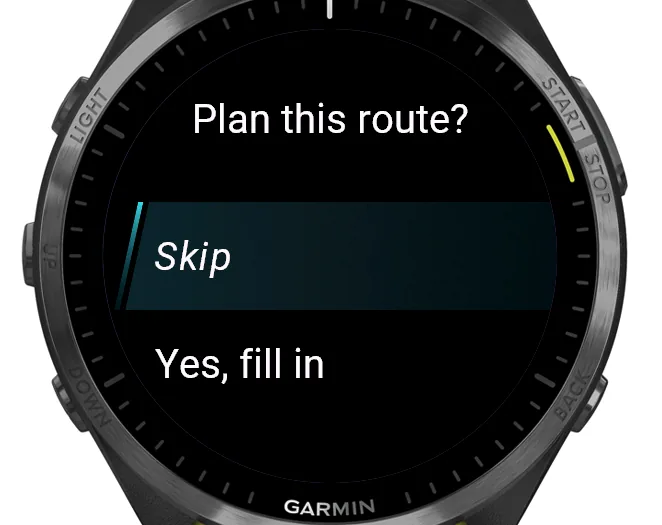
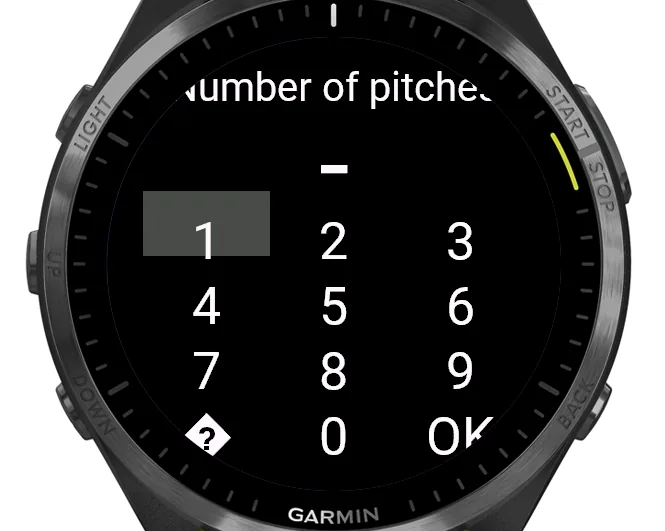
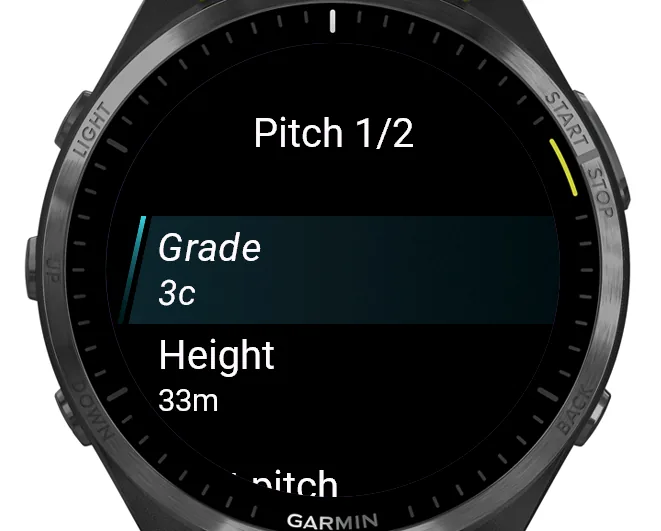
You're then offered an optional topo plan: enter the number of pitches, and a grade and expected height for each, if you already know them from a guidebook. This pre-fills the rating screen later. Skip it entirely if you'd rather not — nothing about climbing the route requires it.
Pitch splitting
While climbing, the watch automatically splits off a pitch once it detects no new height gained for about 3 minutes — the usual sign of a belay changeover. You can also force a split immediately at any point by pressing LAP / BACK. Either way, you're asked to confirm: Next pitch (this pitch is done, keep climbing) or Route finished (end the whole ascent).
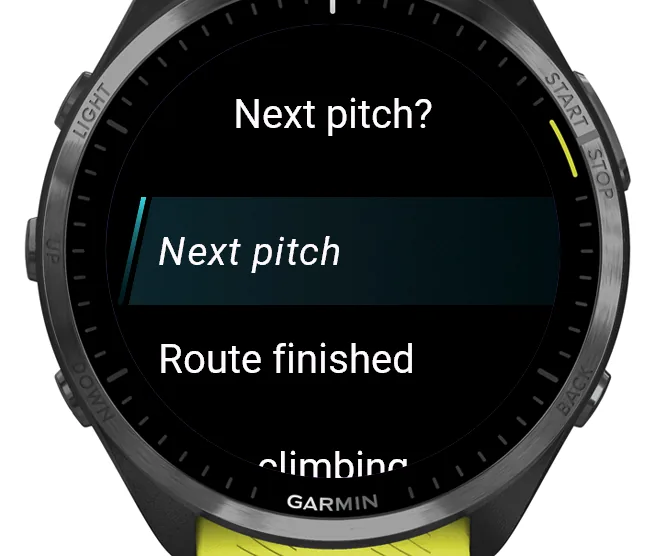
This is deliberately best-effort: a fast handoff with no clear pause (for example, a second who leads straight into the next pitch) can merge two pitches into one longer segment. That's expected, not an error — a merged segment can be corrected afterwards in SportClimb Analytics.
Rating pitches
The Pitch review setting (see Settings above) decides when pitches are rated:
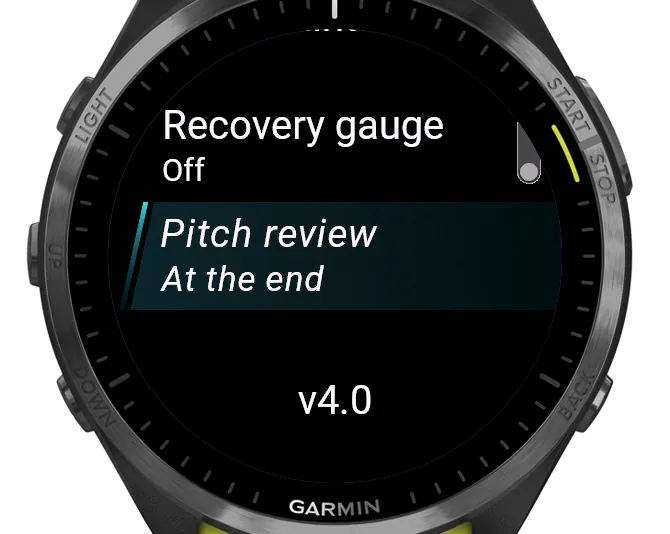
- Direct — rate each pitch immediately after it's split off, on the same log screen used for every other location type.
- At the end — pitches are captured silently as you climb, and rated all at once, in order, once you choose Route finished. Grade and height are pre-filled from your topo plan if you entered one.
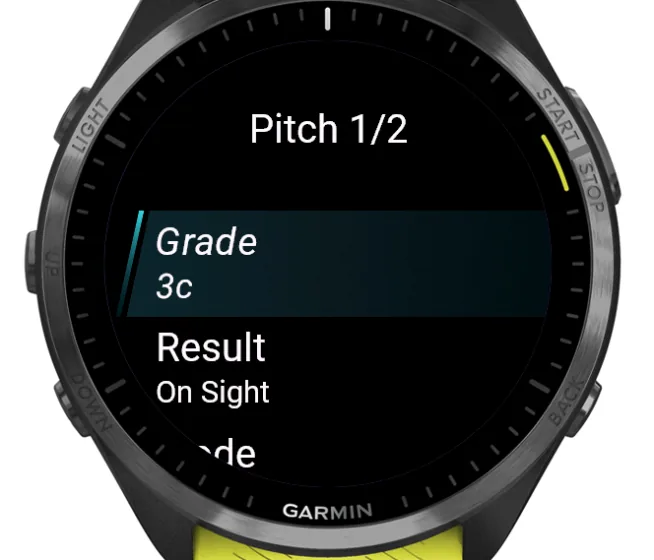
Each pitch logs the same Grade, Result, Mode, Style and Height fields as any other route, plus the route's name and its 1-based pitch number within the ascent.
Saving a session
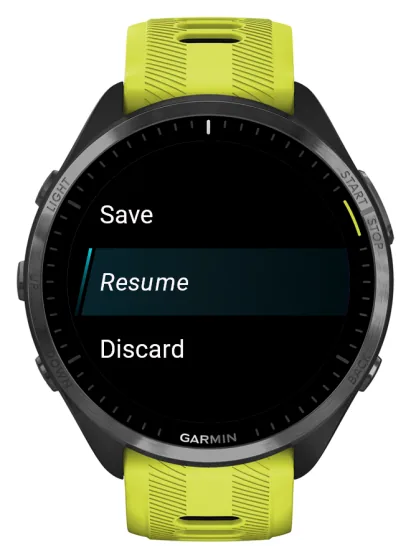
- Press START on the main screen to open the session menu.
- Choose Save to save the session as a Garmin activity, Resume to go back, or Discard to delete the session.
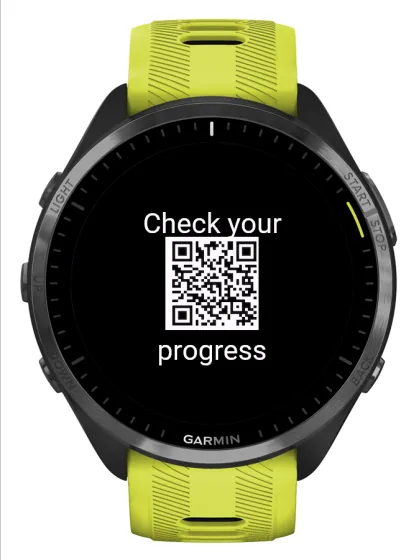
- After saving, a QR code appears. Scan it to go directly to SportClimb Analytics.
- Sync your watch with Garmin Connect (automatically or via the app). Your session data will then appear in SportClimb Analytics.
Stats
The stats screen shows a summary of your climbing history stored on the watch. No session needs to be active to view it.
Open it from the start screen by pressing DOWN or swiping down.
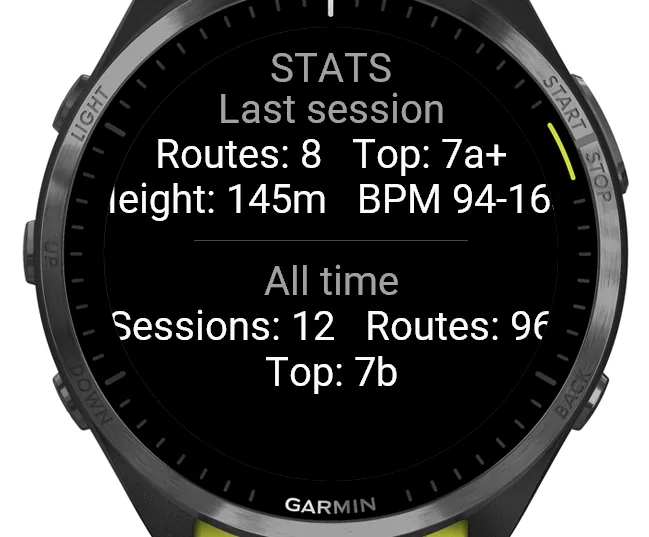
- Last session — routes climbed, top grade, total height gained, heart rate range.
- All time — total sessions, total routes, highest grade ever.
Stats are saved automatically each time you save a session. The first time you open this screen it will show "No sessions yet".
| Button | Action |
|---|---|
| UP / BACK / swipe up | Back to start screen |
SportClimb Analytics
All route details and session data recorded by the watch app are stored in the Garmin FIT file. After syncing your watch with Garmin Connect, the data is automatically picked up by SportClimb Analytics — no manual export needed.
In SportClimb Analytics you can view:
- Session summaries and route history
- Progress over time (grade, height, heart rate)
- Charts and statistics per location and climbing style